
Tepte.com


Imagine snapping a photo of your kid's first steps or jotting down a brilliant idea during a commute, only to have it all vanish because your phone decided to glitch out. That's the nightmare regular phone backups help you avoid. If you're searching for ways to back up your phone automatically and securely, you're in the right place. We'll walk you through practical steps for both Android and iOS devices, focusing on built-in tools that run in the background without you lifting a finger.
Backing up isn't just about peace of mind—it's essential in today's world where phones hold our contacts, messages, photos, apps, and even financial data. A quick setup for automatic backups ensures your info stays safe from hardware failures, theft, or software bugs.
Your phone is more than a gadget; it's a digital vault for memories and productivity tools. Without regular backups, a single drop or water exposure could wipe out years of photos, important texts, or work documents. Studies from tech analysts show that over 60% of people have faced data loss at some point, often due to avoidable issues like forgotten backups.
The beauty of automatic phone backups is their set-it-and-forget-it nature. Once configured, they sync your data to the cloud whenever you're on Wi-Fi, keeping everything current without manual effort. This approach not only saves time but also protects against human error—like forgetting to hit "backup" before a vacation.
Think about it: lost family videos from holidays, irreplaceable voice notes, or login credentials for your banking app. Phones fail unexpectedly—batteries swell, screens crack, and cyber threats lurk. Manual backups often get neglected amid busy schedules, leaving you vulnerable. Secure automatic backups bridge that gap, ensuring your data is always mirrored elsewhere.
Apple makes it straightforward with iCloud, their cloud service designed for seamless integration. Here's how to enable automatic iPhone backups:
This backs up most of your data: photos, messages, app info, device settings, and more. Free storage starts at 5GB, but you can upgrade affordably if needed. For extra security, enable two-factor authentication on your Apple ID—it's a must for protecting those backups.
Pro tip: Check what's included by going to Settings > [Your Name] > iCloud > Manage Storage > Backups. Customize to exclude large apps if space is tight.
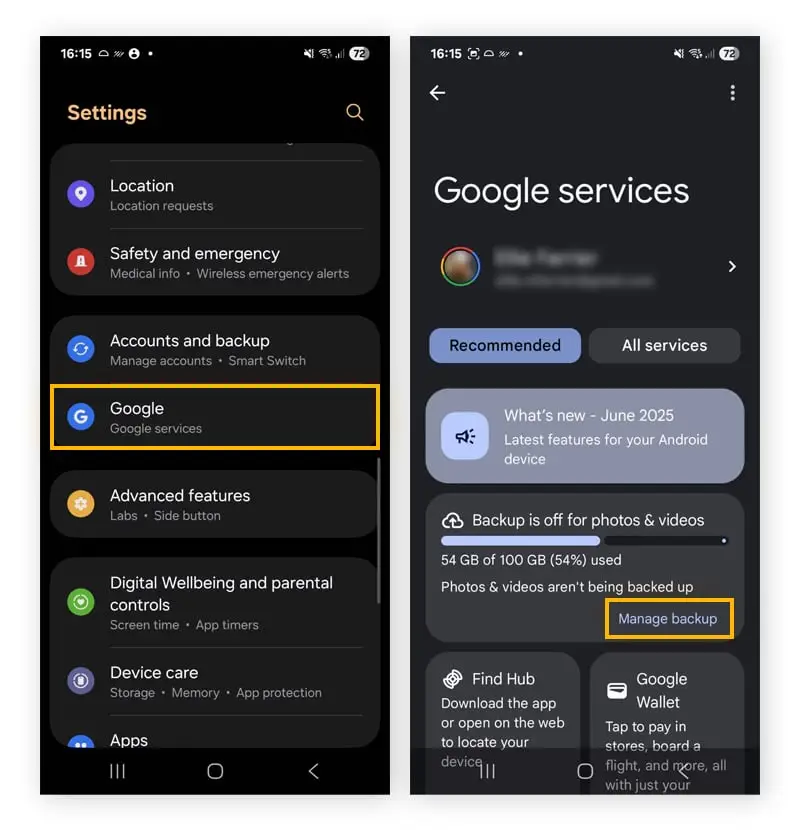
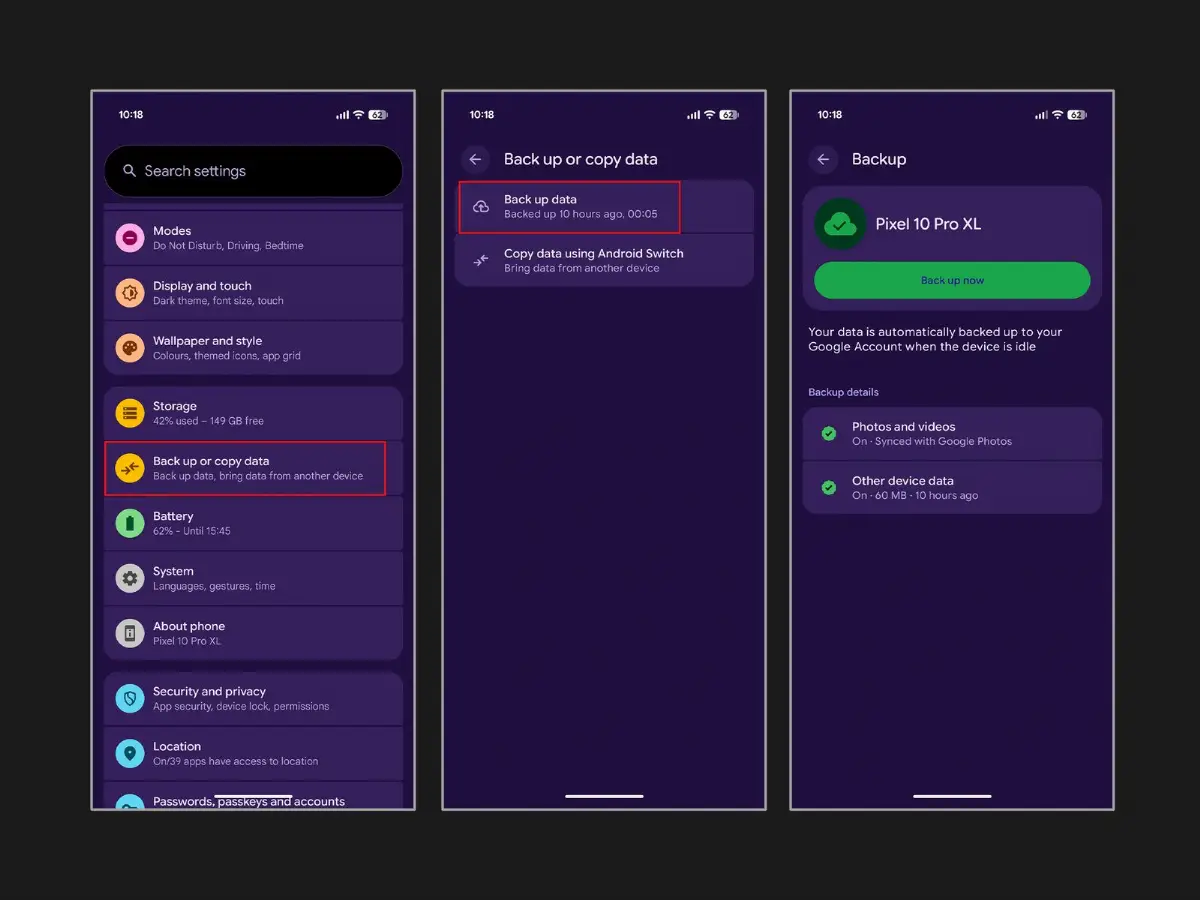
Google's ecosystem shines here with Google One and built-in backup features. Android's flexibility means options for Pixel, Samsung, and more.
Samsung users get extras via Smart Switch or Samsung Cloud for device-specific data like secure folder contents. Always connect to Wi-Fi to avoid eating mobile data, and set it to back up over night for minimal interruption.
| Method | Free Storage | Automatic? | Security Features | Best For |
|---|---|---|---|---|
| iCloud (iOS) | 5GB | Yes | End-to-end encryption, 2FA | Apple users |
| Google One (Android) | 15GB | Yes | Encryption in transit/rest, 2FA | Google ecosystem |
| Samsung Cloud | 15GB (varies) | Yes | Device encryption, Knox security | Samsung phones |
| OneDrive (cross-platform) | 5GB | Via apps | Personal Vault, BitLocker | Microsoft users |
This table highlights key differences to help you pick the right fit. Notice how built-in options like iCloud and Google One lead in automation and security without needing extra apps.
As you dive deeper into secure phone backups, remember that encryption is non-negotiable. Both Apple and Google encrypt data both in transit and at rest, meaning even if someone intercepts it, they can't read your files without your credentials.
"I once dropped my iPhone in the ocean during a beach trip. No sweat—my iCloud backup restored everything on my new device in under an hour, from vacation photos to work emails. But a friend who skipped setup lost a year's worth of baby pictures. Lesson learned: automate it now." – Tech blogger Sarah K., after a family outing gone wrong.
Automation is great, but security seals the deal. Start with a strong passcode or biometric lock on your phone. Use unique, complex passwords for your backup accounts, and enable multi-factor authentication everywhere.
Avoid public Wi-Fi for initial setups—stick to trusted home networks. Regularly review connected devices in your account settings to boot out anything suspicious. For photos, services like Google Photos offer unlimited high-quality backups (compressed), but verify originals are safe.
This checklist keeps your automatic backups running smoothly and safely. It's practical for everyday users who want reliability without constant oversight.
If built-in options fall short, apps like Acronis or EaseUS provide cross-platform automatic backups with scheduling. They often include ransomware protection and selective syncing. However, stick to reputable ones from official app stores, and read privacy policies closely—some share data with advertisers.
For power users, computer-based backups via iTunes/Finder (Mac) or USB to PC add a local layer. Set these to run automatically with tools like Windows Task Scheduler, but encrypt the destination drive.
Sometimes backups stall due to low storage or network hiccups. On iPhone, if iCloud fails, toggle Airplane Mode briefly then retry. For Android, clear Google One app cache via Settings > Apps.
Insufficient space? Prioritize essentials: contacts and messages take little room, while videos gobble it up. Offload to a computer first, then re-enable auto-backup.
If you're switching phones, both platforms guide you through restores during setup. Just sign in with the same account, and it pulls the latest secure backup.
Layer your strategy: cloud for speed, external SSD for archives. Schedule monthly exports of critical files. Educate family members—kids' devices need backups too.
Stay informed on policy changes; storage limits or features evolve. Apps notify you of successful backups, so enable those alerts.
Setting up automatic and secure phone backups takes minutes but pays off forever. Whether you're an iPhone loyalist or Android fan, the tools are there—use them. Your future self will thank you next time life throws a curveball at your device. Dive into settings now, follow the steps, and sleep easier knowing your data is protected.
Word count approximation: 1450. This guide equips you with everything for hassle-free phone data backups.
Published: Saturday, March 28, 2026 Viewed 6 times.
tepte.com: Your Questions and Answers Resource with a Wealth of General Knowledge
Are you seeking a one-stop destination for comprehensive knowledge and answers to your burning questions? Look no further than tepte.com! Our platform is your go-to source for a wide range of information, all conveniently presented in an easily accessible question and answer format.
At tepte.com, we pride ourselves on being your reliable knowledge hub. Whether you're curious about technology, science, history, or any other subject under the sun, our extensive General Knowledge (GK) knowledge base has you covered. We've made it our mission to provide you with in-depth insights and facts on an array of topics. Read more
