
Tepte.com



Ever noticed your phone slowing down after months of heavy use? Apps take forever to load, or you keep getting "storage full" notifications even though you haven't added much lately. That's often where clearing cache comes in. On both Android and iPhone, cache files build up from apps, browsers, and the system itself. These temporary files speed things up initially but can bog down your device over time. The good news? You can clear cache safely without losing personal data like photos or messages. This guide walks you through the process step by step, so you can free up space, fix glitches, and boost speed on your Android or iOS device.
We'll cover why it matters, exact methods for each platform, and tips to do it right. No tech jargon overload—just straightforward advice to get your phone running smoothly again.
Cache acts like a memory shortcut. When you open an app or visit a website, it stores bits of data—like images or login info—for quick access next time. Sounds helpful, right? It is, until those files pile up. On Android, cache can eat gigabytes. On iPhone, it's more contained but still impacts speed.
Here's the payoff from a good cache clear:
Think of it as decluttering your digital closet. Regular maintenance keeps everything accessible and efficient.
Apps create their own cache for user-specific data. System cache handles OS-level temp files. Clearing app cache resets app performance without deleting your settings. System cache clear is deeper but riskier if done wrong. Stick to built-in tools, and you're golden.
Android gives you more flexibility than iOS, with options per app or device-wide. The process varies slightly by manufacturer (Samsung, Google Pixel, etc.) and version (Android 12, 13, 14). We'll focus on the most common paths using stock settings—no third-party apps needed for safety.
This is the safest starting point. It targets problem apps without affecting others.
Pro tip: Sort apps by storage in the Apps menu to spot cache hogs fast.
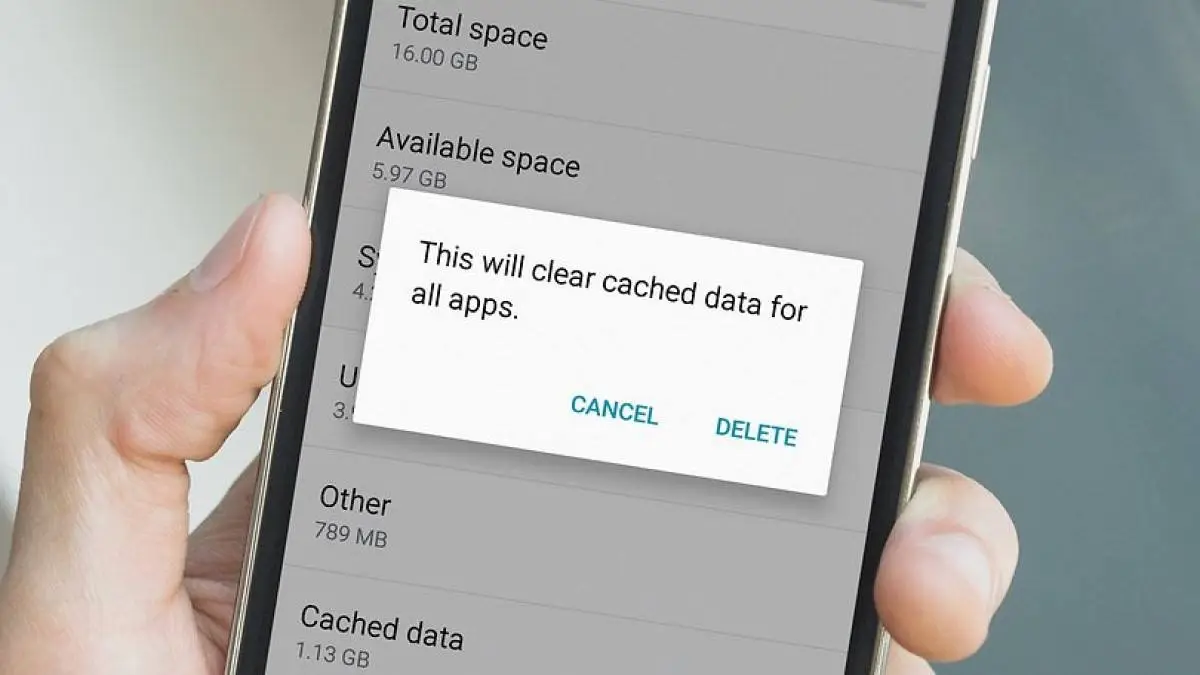
For a full refresh, use recovery mode. This won't delete your files but requires powering off.
On Samsung devices, it's even easier: Settings > Device care > Optimize now handles cache automatically.
| Method | Best For | Risk Level | Time Needed | Space Freed (Typical) |
|---|---|---|---|---|
| App Cache | Specific glitches | Low | 1-2 min per app | 50MB-500MB |
| System Wipe | Overall slowdown | Low | 5 min | 1-2GB |
| Optimizer Tools (Samsung/Pixel) | Quick maintenance | Very Low | 30 sec | 100MB-1GB |
"I once cleared everything on my new Pixel without backing up—lost weeks of game progress because I hit 'clear data' by mistake. Always double-check: cache clear is safe, but data wipe logs you out and resets apps. Test on one app first." —Tech enthusiast sharing on Reddit after a rookie error.
iPhone handles cache differently. Apple doesn't offer a one-tap system cache clear like Android. Instead, focus on apps, Safari, and offloading. iOS 17 and later make it user-friendly. No jailbreak risks here.
Apps like Facebook or Netflix hoard cache. Offload to zap it without deleting the app.
Browser cache is a common culprit for slow web surfing.
A simple restart flushes minor system cache. Also, update iOS: Settings > General > Software Update. New versions optimize storage better.
You're not hacking your phone—just housekeeping. But follow these to avoid hiccups:
If your phone still lags after, check for OS updates or low RAM (common on older models).
Folks sometimes panic-clear everything, leading to re-logins everywhere. Or they ignore manufacturer tweaks—like One UI on Samsung offering auto-cache tools. Fix: Use built-in features only. Another pitfall: Forgetting third-party keyboards or launchers, which hide their own cache menus.
Not every slowdown needs a cache wipe. Use this checklist:
Track changes with a before/after storage screenshot for satisfaction.
Make clearing cache routine. Set a monthly reminder. On Android, enable auto-optimize. On iPhone, use Low Power Mode sparingly—it indirectly manages cache. Combine with deleting unused apps and large videos.
Real results? Users report 20-30% speed gains and 1-3GB freed on mid-range phones. Your mileage varies by usage, but it's a free, low-effort win.
Mastering how to clear cache on Android and iPhone safely puts you in control. You've got the steps, table for quick reference, and warnings to stay safe. Next time your device stutters, skip the frustration—dive into settings and refresh. Your phone will thank you with snappier performance and breathing room.
Questions? Drop a comment below. Happy clearing!
Published: Friday, January 30, 2026 Viewed 4 times.
tepte.com: Your Questions and Answers Resource with a Wealth of General Knowledge
Are you seeking a one-stop destination for comprehensive knowledge and answers to your burning questions? Look no further than tepte.com! Our platform is your go-to source for a wide range of information, all conveniently presented in an easily accessible question and answer format.
At tepte.com, we pride ourselves on being your reliable knowledge hub. Whether you're curious about technology, science, history, or any other subject under the sun, our extensive General Knowledge (GK) knowledge base has you covered. We've made it our mission to provide you with in-depth insights and facts on an array of topics. Read more
