
Tepte.com


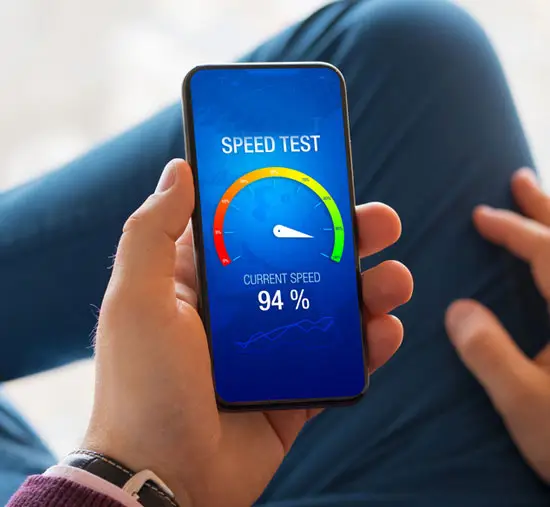
Is your Android phone dragging its feet? Apps taking forever to load, constant lagging during scrolls, or that frustrating stutter when switching tasks? You're not alone. Millions of users deal with slow Android performance every day, but the good news is you can fix it without being a tech wizard. In this guide, we'll walk through proven, straightforward steps to breathe new life into your device. No fancy tools or rooting required—just practical tweaks that work on most Android phones, from budget models to flagships.
Before we dive in, let's quickly cover why this happens. Over time, your phone fills up with junk files, outdated apps hog resources, and background processes eat away at speed. Background syncs, too many notifications, and even a cluttered home screen contribute. But don't worry; with a few targeted changes, you'll notice a snappier experience right away.
Start with the basics that pack the biggest punch. These speed up Android tricks are battle-tested and easy to implement. Follow along, and your phone will feel brand new.
A simple reboot clears temporary glitches and frees up RAM. Think of it as giving your phone a quick nap. Many users overlook this, but restarting once a day can cut lag by refreshing all processes.
Hold the power button, select Restart, and wait 30 seconds. Do this weekly at minimum. If your device has a battery-saving mode always on, toggle it off first— it can throttle performance unnecessarily.

Outdated Android versions and apps are prime culprits for slowness. Developers release patches that optimize speed and fix bugs.
Go to Settings > System > System Update to check for OS updates. Then, open the Google Play Store, tap your profile icon, and select Manage apps & device > Updates available. Install everything. Pro tip: Enable auto-updates overnight when you're not using the phone to avoid interruptions.
After updating, your Android performance should improve noticeably, especially on devices running older versions like Android 11 or below.
Cache files from apps build up and slow things down without you noticing. Clearing them is like decluttering your digital closet.
Delete large files, old downloads, and unused photos via the Files app. Tools like Google Files by default help identify bloat easily.
| Criterion | Why It Is Important | Control Tip |
|---|---|---|
| High Battery Drain | Apps running wild in background kill speed and battery | Settings > Battery > Battery usage—sort by drainers and restrict |
| Excessive RAM Use | Eats available memory, causing constant reloads | Developer options > Running services—enable via tap Build number 7x in About phone |
| Frequent Crashes | Unstable apps fragment performance | Play Store > My apps > Updates or force stop/uninstall |
| Data Hogging | Slows internet-dependent tasks | Settings > Network & internet > Data usage—set limits |
Use this table as your quick diagnostic tool. Focus on the top offenders first for the fastest gains.
Your app drawer is probably packed with forgotten downloads. Each one runs in the background, sipping resources.
Settings > Apps > See all apps. Sort by size or last used. Uninstall anything you haven't opened in months. For pre-installed bloatware (like carrier apps), select Disable instead of uninstall.
Proven tip: Limit yourself to 50-60 essential apps. Fewer apps mean less competition for CPU and RAM.
Apps buzzing for attention or syncing constantly fragment your experience. Time to put them on a leash.
In Settings > Apps > Special app access > Battery optimization, set aggressive apps to Optimized or Restricted. Also, review notifications: Settings > Notifications > App notifications—turn off non-essentials.
This alone can free up 20-30% more processing power for what matters.
Here's a hard lesson from my own experience: I once ignored background battery hogs on an older Samsung Galaxy. My phone went from zippy to unbearable in weeks. Always check battery stats monthly—it's the silent killer of smooth performance.
Those smooth transitions look cool but cost speed on mid-range hardware.
Enable Developer options (tap Build number 7 times in Settings > About phone). Then, Developer options > Window/Transition/Duration scale—set all to 0.5x or Off. Your interface will feel lightning-fast.
Bonus: Turn on Force GPU rendering if you're into gaming, but test it—some apps prefer default.
Adaptive Battery learns your habits and kills idle apps smartly. Ensure it's on: Settings > Battery > Adaptive Battery.
Also, switch to Performance mode if available (on Pixels or OnePlus). Avoid always-on dark mode if it conflicts with your wallpaper—small tweaks add up.
Suspect a rogue app? Safe Mode runs only stock software.
Power off, then power on while holding Volume Down until the Safe Mode screen appears. Use for 10-15 minutes—if it's faster, uninstall recent apps one by one in normal mode.
If basics don't cut it, dig deeper without risk.
SD Card Switch: If using one, move to internal storage—microSD can bottleneck reads.
Live Wallpapers: Swap for static ones; they guzzle GPU.
Widget Cleanup: Remove all but 2-3; they refresh constantly.
For heavy users, consider a lightweight launcher like Nova Launcher. Customize it lean—no heavy themes.
Sometimes, it's age. Batteries degrade after 2-3 years, throttling speed. Check Battery health in apps like AccuBattery.
Last resort: Factory reset. Back up first via Settings > System > Backup. Then, Settings > System > Reset options > Erase all data.
Post-reset, install apps sparingly and follow these tips from day one to maintain speed.
Speed isn't a one-time fix—it's maintenance.
Weekly: Restart, clear cache, check storage.
Monthly: Update apps, review battery usage.
Quarterly: Safe Mode test and uninstall audit.
Track improvements with built-in tools or apps like CPU-Z for benchmarks. Users report 40-60% speed boosts combining these.
Your Android was built to last—don't let neglect slow it down. Start with restarts and updates today, and build from there. Got questions on a specific model like Samsung or Pixel? Drop a comment; we've covered the universals that hit every device.
Implement these proven tips to fix slow Android performance, and enjoy a smoother ride. Your phone will thank you with buttery scrolls and instant app launches.
Published: Saturday, January 17, 2026 Viewed 11 times.
tepte.com: Your Questions and Answers Resource with a Wealth of General Knowledge
Are you seeking a one-stop destination for comprehensive knowledge and answers to your burning questions? Look no further than tepte.com! Our platform is your go-to source for a wide range of information, all conveniently presented in an easily accessible question and answer format.
At tepte.com, we pride ourselves on being your reliable knowledge hub. Whether you're curious about technology, science, history, or any other subject under the sun, our extensive General Knowledge (GK) knowledge base has you covered. We've made it our mission to provide you with in-depth insights and facts on an array of topics. Read more
