
Tepte.com


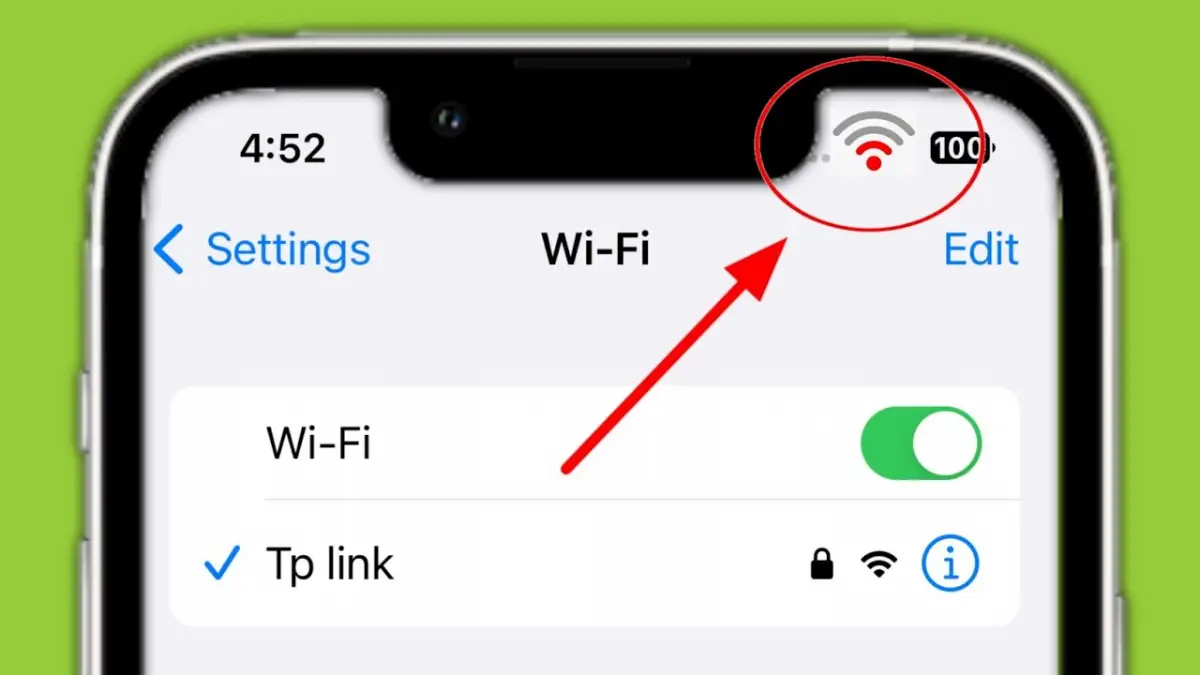
Nothing disrupts your day quite like a Wi-Fi connection issue on your mobile phone. Whether you're trying to stream a video, check emails, or just browse social media, a spotty or nonexistent Wi-Fi signal can be incredibly frustrating. The good news is that most Wi-Fi problems on smartphones stem from simple causes that you can resolve with a few targeted steps. In this guide, we'll walk you through practical troubleshooting methods tailored for both Android and iOS devices, helping you get back online quickly without needing tech support.
These fixes are based on the most common scenarios users face, like weak signals, forgotten networks, or software glitches. By following along, you'll learn to identify the root cause and apply the right solution. Let's dive in and tackle those Wi-Fi connection issues head-on.
Before jumping into complex fixes, rule out the obvious. Sometimes, the simplest actions resolve Wi-Fi problems on your phone.
If these don't help, move to the next steps. Patience here pays off, as rushing can lead to overlooking easy wins.
When Wi-Fi connection issues pop up, time is of the essence. Here are proven quick fixes that work for the majority of smartphone users. We'll break them down into phone-side and router-side actions.
A classic but effective first step. Restarting clears temporary glitches in your phone's network stack or your router's firmware.
This duo resolves about 40% of intermittent Wi-Fi issues, according to user reports on tech forums.
Your phone might have stored corrupted data for the network. Forgetting it forces a fresh connection.
On Android: Go to Settings > Network & Internet > Wi-Fi, tap your network, and select "Forget."
On iPhone: Settings > Wi-Fi, tap the info icon next to your network, and choose "Forget This Network."
Then, select the network again, enter the password, and connect. This often fixes authentication errors.
Household devices like microwaves, cordless phones, or even neighboring networks can interfere with 2.4GHz Wi-Fi bands. Switch to the 5GHz band if your router supports it—it's faster and less crowded but has shorter range.
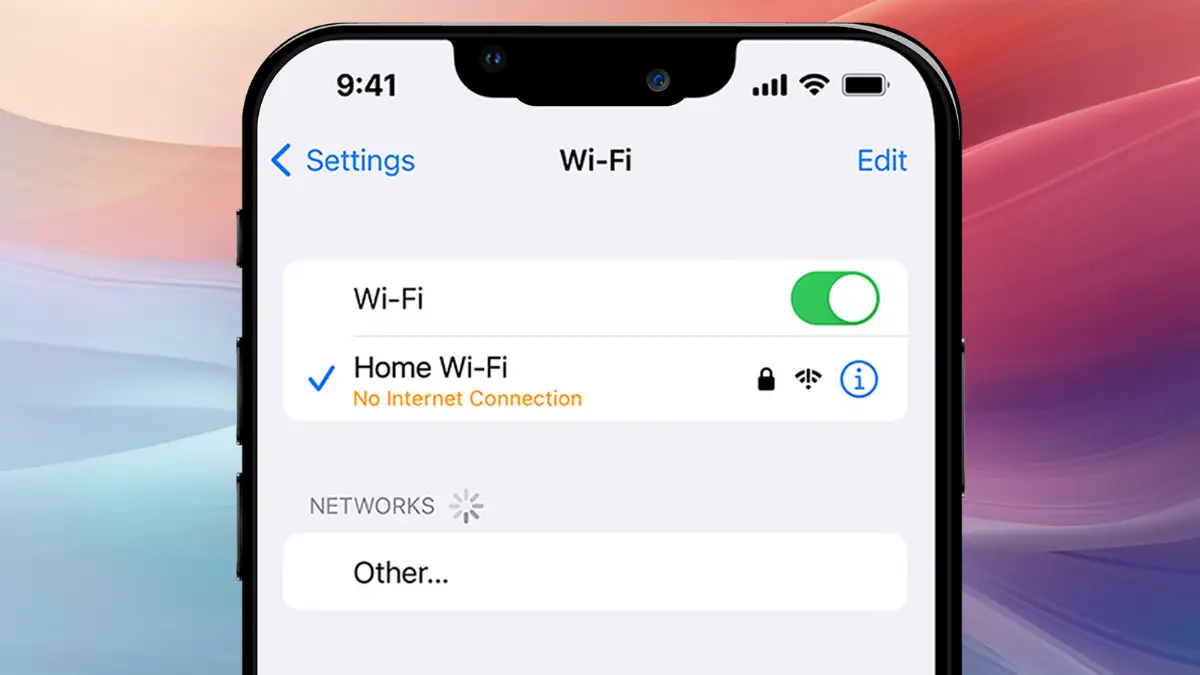
Move your phone closer to the router temporarily to test. If it connects solidly there, the issue is signal strength. Consider a Wi-Fi extender for larger homes.
Outdated operating systems can cause compatibility problems with modern routers. Check for updates:
Android: Settings > System > System Update.
iOS: Settings > General > Software Update.
Install any available patches, as they often include network stability improvements.
Now, let's look at a handy reference table for common symptoms and their likely fixes.
| Symptom | Possible Cause | Quick Fix |
|---|---|---|
| Wi-Fi shows "Connected, no internet" | DNS issues or router overload | Change DNS to 8.8.8.8 in phone settings; restart router |
| Connects but drops frequently | Weak signal or interference | Switch to 5GHz band; reposition router |
| Can't find networks at all | Wi-Fi hardware fault or Airplane Mode | Toggle Airplane Mode; run hardware diagnostic |
| Slow speeds despite full bars | Network congestion or VPN | Disable VPN; limit connected devices |
| Authentication failed error | Incorrect password or saved data corruption | Forget network and re-enter password |
This table should give you a starting point based on what you're seeing. Use it as a checklist during your troubleshooting.
"I once spent hours calling my ISP, only to realize my phone's VPN app was routing traffic incorrectly and blocking Wi-Fi entirely. Turning it off fixed everything in seconds—a reminder to always check apps before blaming the network."— Tech enthusiast on Reddit
If basic steps fall short, tweak deeper settings. Start with private DNS, which can resolve internet access problems even when connected.
On Android: Settings > Network & Internet > Private DNS > Select "Private DNS provider hostname" and enter "dns.google" or "one.one.one.one".
For iOS users, configure DNS manually in Wi-Fi settings: Tap the info icon, scroll to Configure DNS, and add 8.8.8.8 as primary and 8.8.4.4 as secondary.
Next, disable power-saving modes that throttle Wi-Fi. On Android, go to Battery settings and turn off Adaptive Battery for Wi-Fi. iPhones have Low Power Mode—turn it off in Battery settings.
VPNs are great for privacy but can conflict with local Wi-Fi. Open your VPN app and disconnect, or go to phone settings to disable any system-wide VPN.
Proxies are rarer but check: Android under Wi-Fi advanced settings; iOS in the network's info menu.
Android stores network data that can get corrupted. Go to Settings > Apps > See all apps > System apps > Wi-Fi service (or Network settings), then Clear cache and Clear data. Restart your phone afterward.
As a stronger measure, reset all network configs. This erases saved Wi-Fi passwords, Bluetooth pairings, and cellular settings but doesn't delete apps or data.
Android: Settings > System > Reset options > Reset Wi-Fi, mobile & Bluetooth.
iOS: Settings > General > Transfer or Reset iPhone > Reset > Reset Network Settings.
Reconnect to your networks post-reset. This fixes persistent glitches.
Not all issues are phone-bound. Use your phone's browser to access your router's admin page (usually 192.168.1.1 or 192.168.0.1—check the router label for login creds).
Security tip: Change default router passwords to prevent unauthorized access slowing your network.
Android and iOS handle Wi-Fi slightly differently. Samsung users might check Smart Manager for network optimization. Pixel phones have a built-in Wi-Fi helper under Settings > Network & Internet > Internet.
For iPhones, ensure Location Services are on, as some Wi-Fi features rely on it. Also, toggle "Auto-Join" for trusted networks.
To isolate if it's your phone or the network, connect another device like a laptop or tablet. If others work fine, the issue is phone-specific—consider a factory reset as a last resort (back up first!). If not, contact your ISP.
If nothing works, it could be hardware failure. Run diagnostics: Android's via *#*#4636#*#* code (enter in dialer); iPhones via the Apple Support app.
Visit a service center or your carrier for deeper inspection. Persistent issues might indicate a faulty Wi-Fi antenna.
By systematically working through these steps, you'll resolve most Wi-Fi connection issues on mobile phones. Keep a log of what you try for future reference. Reliable internet keeps you connected—happy troubleshooting!
Published: Tuesday, April 7, 2026 Viewed 10 times.
tepte.com: Your Questions and Answers Resource with a Wealth of General Knowledge
Are you seeking a one-stop destination for comprehensive knowledge and answers to your burning questions? Look no further than tepte.com! Our platform is your go-to source for a wide range of information, all conveniently presented in an easily accessible question and answer format.
At tepte.com, we pride ourselves on being your reliable knowledge hub. Whether you're curious about technology, science, history, or any other subject under the sun, our extensive General Knowledge (GK) knowledge base has you covered. We've made it our mission to provide you with in-depth insights and facts on an array of topics. Read more
