
Tepte.com


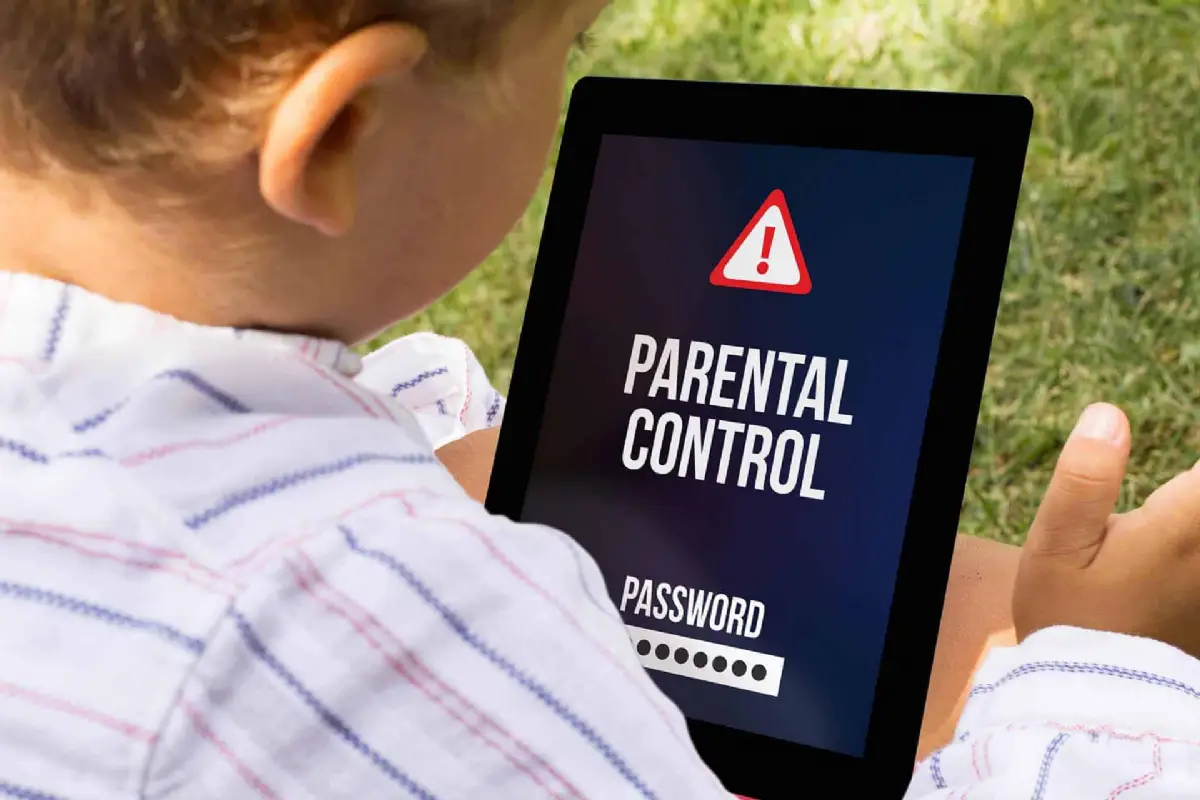
Keeping your children safe while they explore the digital world doesn't have to feel overwhelming. With smartphones, tablets, and computers becoming everyday tools for kids, parents need practical ways to set boundaries. This guide walks you through essential tips to protect kids online, from built-in device features to reliable third-party apps. You'll learn step-by-step methods tailored for phones, tablets, and computers, helping you create a safer online environment without stifling their curiosity.
The internet opens doors to education and fun, but it also exposes children to risks like inappropriate content, cyberbullying, and online predators. Studies show that kids as young as eight spend hours daily on screens, often unsupervised. Parental controls act as your first line of defense, letting you limit screen time, block harmful sites, and track activity. Start by assessing your child's age and habits—younger kids need stricter limits, while teens benefit from guided freedom.
Most devices come with free parental control tools that are easy to set up. No extra downloads required, which makes them a great starting point.
Apple's Screen Time feature is robust. Go to Settings > Screen Time > Turn On Screen Time. Set a passcode only you know, then configure Downtime for bedtimes and App Limits for games or social media. Use Content & Privacy Restrictions to block explicit websites, app downloads, and even in-app purchases. For family sharing, enable Family Sharing to manage multiple devices from your iPhone.

Google Family Link shines here. Download it from the Play Store, create a child account, and link their device. You can approve app installs, set daily limits, and geofence locations to know when they arrive home. On newer Androids, Digital Wellbeing offers focus modes and bedtime schedules. Note that features vary by manufacturer, like Samsung's Kids Mode for added filtering.
These built-ins handle basics well, but for deeper monitoring across devices, consider supplements.
Computers demand different approaches since kids might use them for homework or gaming.
Microsoft Family Safety is free and integrates with your Microsoft account. Create a child account via Settings > Accounts > Family & other users. Set screen time limits, filter web content through Microsoft Edge, and get activity reports. It blocks apps and games by age rating too.
On macOS, Screen Time works like on iOS—enable it in System Preferences. Parental Controls (older versions) or Restrictions let you whitelist apps and limit web access. For Safari, enable content filters to block adult sites automatically.
Pro tip: Always test restrictions in a family group to ensure they sync across devices.
When built-ins fall short—like needing cross-platform tracking or social media alerts—third-party apps step in. They offer advanced features like keyword alerts for risky searches and YouTube monitoring. Here's a comparison of popular, reliable options:
| Tool | Platforms | Key Features | Price (per year) |
|---|---|---|---|
| Qustodio | iOS, Android, Windows, Mac | Time limits, web/app blocking, location tracking, panic button | $55 (up to 5 devices) |
| Net Nanny | iOS, Android, Windows, Mac | Real-time content filtering, porn detection, YouTube screening, text monitoring | $40 (unlimited devices) |
| Bark | iOS, Android, computers (via browser) | AI alerts for bullying, depression, predators; social media scans | $99 (unlimited devices) |
| OurPact | iOS, Android | App blocking schedules, website blocks, family locator | $65 (up to 20 devices) |
Choose based on your needs: Qustodio for comprehensive tracking, Bark for mental health focus. Most offer free trials, so test before committing. Install on your device as the parent app and the child's as the managed one.
Follow this practical parental control setup checklist to get started quickly:
This ordered process ensures nothing slips through.
"One evening, my 11-year-old came across a disturbing video on a gaming site that led to a chat with strangers. Without parental controls, it could've escalated. Now, with alerts in place, I catch issues early and talk them through—saving us from real harm."
— Sarah M., parent of two
Social apps like Instagram, Snapchat, and TikTok are hotspots for risks. Use platform-specific controls: on Instagram, set private accounts and restrict messages from non-followers. TikTok's Family Pairing links your account to theirs for time limits and restricted mode. For messaging, apps like Bark scan texts for bullying keywords without reading every word.
Balance is key—over-monitoring can breed resentment. Share your phone number for emergencies and encourage open chats about online friends.
Tech alone isn't enough; teach digital citizenship. Start conversations: "What would you do if someone asks for your photo?" Use resources from Common Sense Media for age-based videos. Role-play scenarios like spotting fake profiles or handling trolls.
These habits stick better than rules alone.
Parents often forget to update filters as kids grow or neglect their own devices, which kids might borrow. Another pitfall: ignoring router-level controls. Use your home Wi-Fi router's parental settings (like on Netgear or TP-Link) to block sites network-wide. Also, secure your accounts with strong passwords—kids are tech-savvy and might bypass weak setups.
Regularly review app permissions too; games often hide chat features.
If your household juggles iOS and Android, cross-platform tools like Qustodio unify management via a dashboard. Enable two-factor authentication everywhere. For tablets used in shared spaces, quick-lock shortcuts help. Track usage patterns—spikes in late-night activity signal issues.
Consider school devices: Many districts use tools like GoGuardian, so coordinate with teachers.
Online dangers evolve—AI deepfakes and VR worlds are emerging. Subscribe to newsletters from ConnectSafely or the FTC for updates. Join parent forums for real-user tips on dodging VPN bypasses, a common teen trick.
Implementing parental controls takes time upfront but pays off in peace of mind. Combine tech tools with talks, and adjust as your child matures. You're not just blocking risks—you're teaching responsibility. Start today: pick one device, set limits, and build from there. Your kids will thank you later for navigating the web wisely.
Published: Monday, January 19, 2026 Viewed 1 times.
tepte.com: Your Questions and Answers Resource with a Wealth of General Knowledge
Are you seeking a one-stop destination for comprehensive knowledge and answers to your burning questions? Look no further than tepte.com! Our platform is your go-to source for a wide range of information, all conveniently presented in an easily accessible question and answer format.
At tepte.com, we pride ourselves on being your reliable knowledge hub. Whether you're curious about technology, science, history, or any other subject under the sun, our extensive General Knowledge (GK) knowledge base has you covered. We've made it our mission to provide you with in-depth insights and facts on an array of topics. Read more
