
Tepte.com


If you're tired of constantly checking your mobile data usage and hitting limits before the month ends, you're not alone. Smartphones are data-hungry devices, but the good news is you can cut back significantly using just your phone's built-in settings and a few smart habits. No need for third-party apps that might slow things down or pose privacy risks. This guide walks you through practical steps for both Android and iOS devices to reduce mobile data usage effectively.
Start by checking your current data habits. On Android, head to Settings > Network & internet > Mobile network > Data usage. For iPhone users, it's Settings > Cellular. These screens show exactly which apps are eating your data, giving you a clear picture of where to focus.
The quickest win comes from enabling your phone's native data-saving features. These modes limit background activity and compress data automatically.
Most Android phones running version 7.0 or later have a Data Saver toggle. Go to Settings > Network & internet > Data Saver, and switch it on. This restricts apps from using data in the background unless you whitelist them. You might notice apps like social media loading slower, but you'll save up to 30% on data right away.
Pro tip: While Data Saver is active, review the "Unrestricted data" list and remove apps that don't need constant access, like games or video players.
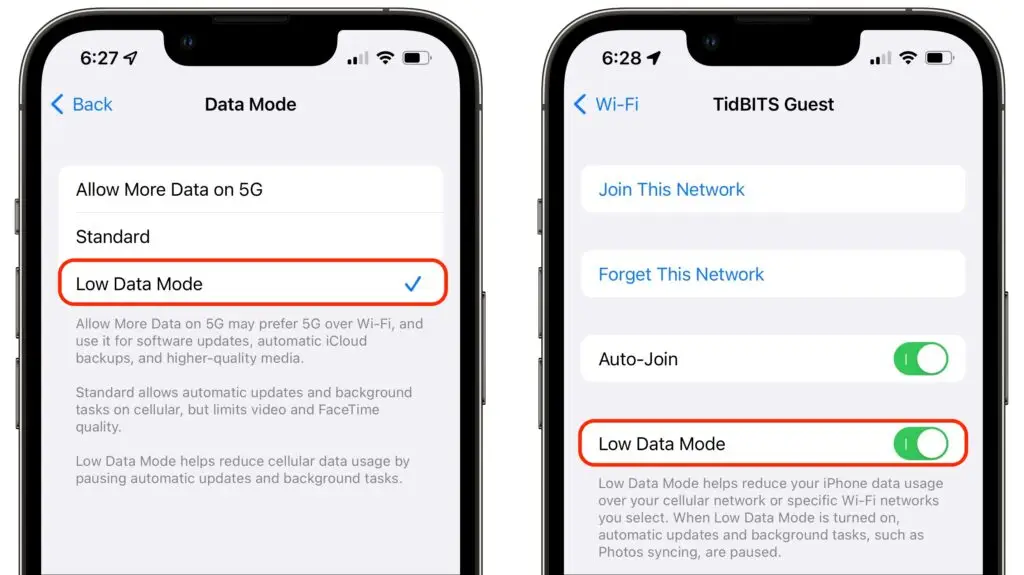
Apple calls it Low Data Mode. Find it in Settings > Cellular, then scroll down and tap Data Mode > Low Data Mode. For Wi-Fi, it's under Settings > Wi-Fi, tapping the info icon next to your network. This pauses automatic updates and preloading, perfect for conserving cellular data when signals are weak.
Users report seeing their data drop by 20-40% monthly after turning this on, especially if they forget to connect to Wi-Fi at home.
Background processes are silent data thieves. Emails syncing, cloud backups, and app refreshes happen without you noticing.
This stops apps from refreshing when you're not using them, potentially halving unnecessary usage.
Go to Settings > General > Background App Refresh. Set it to Wi-Fi or Off. Cellular users should choose Off to prevent apps from updating content silently. Combine this with Low Data Mode for maximum impact.
Video streaming apps like YouTube, Netflix, or TikTok guzzle data at standard quality. Dial it back without losing enjoyment.
On YouTube (via the app settings): Tap your profile > Settings > Video quality preferences > Data saver. It caps quality on mobile data. For Netflix, it's Account > Playback settings > Data usage > Medium or Low.
In browsers, enable data compression. Chrome users: Settings > Lite mode (if available). Safari on iOS does this automatically in Low Data Mode. These tweaks alone can slash video data by 50% or more.
App updates and cloud syncs sneak up on you. Set them to Wi-Fi only.
Settings > Google Play Store > Settings > Auto-update apps > Over Wi-Fi only. For system updates: Settings > System > System update > turn off auto-download over mobile.
Settings > App Store > App Updates (toggle off for manual control). For iOS updates: Settings > General > Software Update > Automatic Updates > set downloads to Wi-Fi only.
Sync for Google or iCloud: Android > Accounts > choose account > Account sync > toggle off non-essentials like photos. iOS: Settings > [Your Name] > iCloud > toggle off Mail, Photos if not needed on cellular.
Settings are great, but habits seal the deal. Here's a practical checklist to build into your routine:
Adopting three of these can reduce your billable data by 25% without changing your lifestyle much.
To make it easier, here's a side-by-side table of key built-in features:
| Feature | Android Path | iOS Path | Estimated Savings |
|---|---|---|---|
| Data Saver/Low Data Mode | Settings > Network & internet > Data Saver | Settings > Cellular > Data Mode > Low Data Mode | 20-40% |
| Background App Refresh | Settings > Apps > [App] > Background data | Settings > General > Background App Refresh > Off | 15-30% |
| Auto App Updates | Play Store > Settings > Auto-update > Wi-Fi only | Settings > App Store > App Updates > Off | 10-20% |
| Cloud Sync | Settings > Accounts > Sync off | Settings > [Name] > iCloud > Toggle off | 5-15% |
| Video Data Saver | YouTube/Chrome: Data saver on | Safari: Automatic in Low Data Mode | 30-50% |
This table highlights where to start based on your device. Savings are averages from user reports and built-in estimates.
"I used to blow through 10GB every month on videos and updates alone. After enabling Data Saver and turning off background refresh, plus checking Wi-Fi spots more, I'm down to 4GB—and I stream just as much. Don't sleep on airplane mode in fringe areas; it saved me from a $50 overage once." – Real user review from a tech forum.
Location tracking powers maps and weather but chews data continuously. Android: Settings > Location > App permissions > restrict to "While using." iOS: Settings > Privacy & Security > Location Services > set apps to "While Using" or Never.
Push notifications fetch tiny bits of data often. Android: Settings > Apps > Notifications > turn off for non-essential apps. iOS: Settings > Notifications > customize per app. Fewer pings mean less data trickle.
Your default browser can compress pages. On Chrome for Android: Settings > Privacy and security > Lite mode (reduces page size). Firefox has similar options. iOS Safari leverages Low Data Mode to limit images and scripts.
Switch to text-heavy sites or use reader view (tap the "aA" icon in browsers) to strip extras. This cuts browsing data by 25% easily.
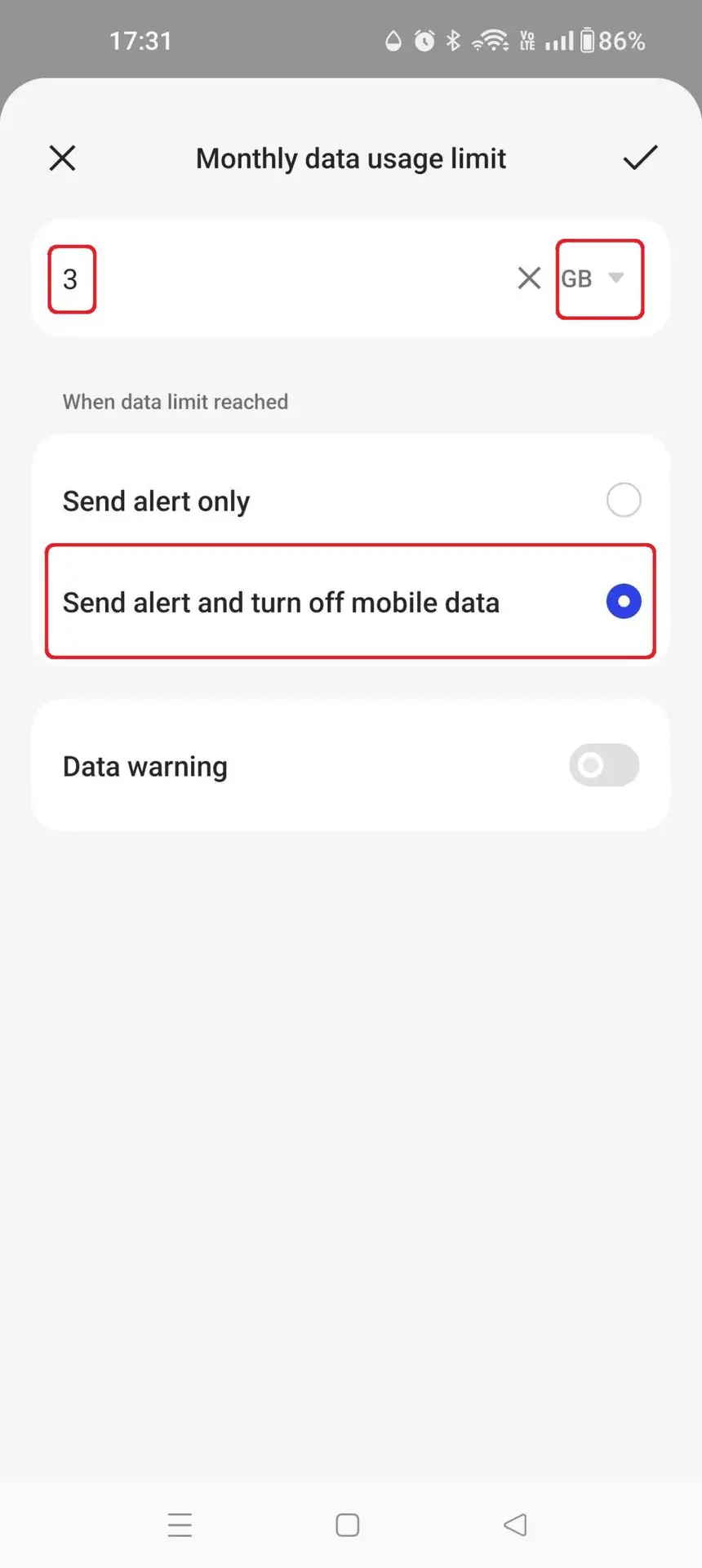
After a week, revisit your data usage screen. Note changes—did videos drop? Background flatline? Tweak whitelisted apps or habits accordingly. Set alerts in Settings > Cellular > Data Warning & Limit (Android) or Data Usage Warnings (iOS) to stay proactive.
For families, check shared plans via carrier apps, but focus on device-level controls first. Over time, these steps compound: one user shared going from 15GB to under 6GB monthly.
Consider your carrier's data cycles. If you're on unlimited but throttled plans, these tips prevent slowdowns. Download large files only on Wi-Fi, and use offline maps like Google Maps' saved areas.
Clear cache periodically: Android Settings > Apps > Storage > Clear cache (not data). iOS does this automatically but offloads unused apps via Settings > General > iPhone Storage.
By combining settings tweaks with mindful habits, you'll reclaim control over your mobile data usage. It's not about restriction—it's about efficiency. Start with Data Saver today, and watch your counter barely move.
Published: Friday, January 30, 2026 Viewed 9 times.
tepte.com: Your Questions and Answers Resource with a Wealth of General Knowledge
Are you seeking a one-stop destination for comprehensive knowledge and answers to your burning questions? Look no further than tepte.com! Our platform is your go-to source for a wide range of information, all conveniently presented in an easily accessible question and answer format.
At tepte.com, we pride ourselves on being your reliable knowledge hub. Whether you're curious about technology, science, history, or any other subject under the sun, our extensive General Knowledge (GK) knowledge base has you covered. We've made it our mission to provide you with in-depth insights and facts on an array of topics. Read more
