
Tepte.com


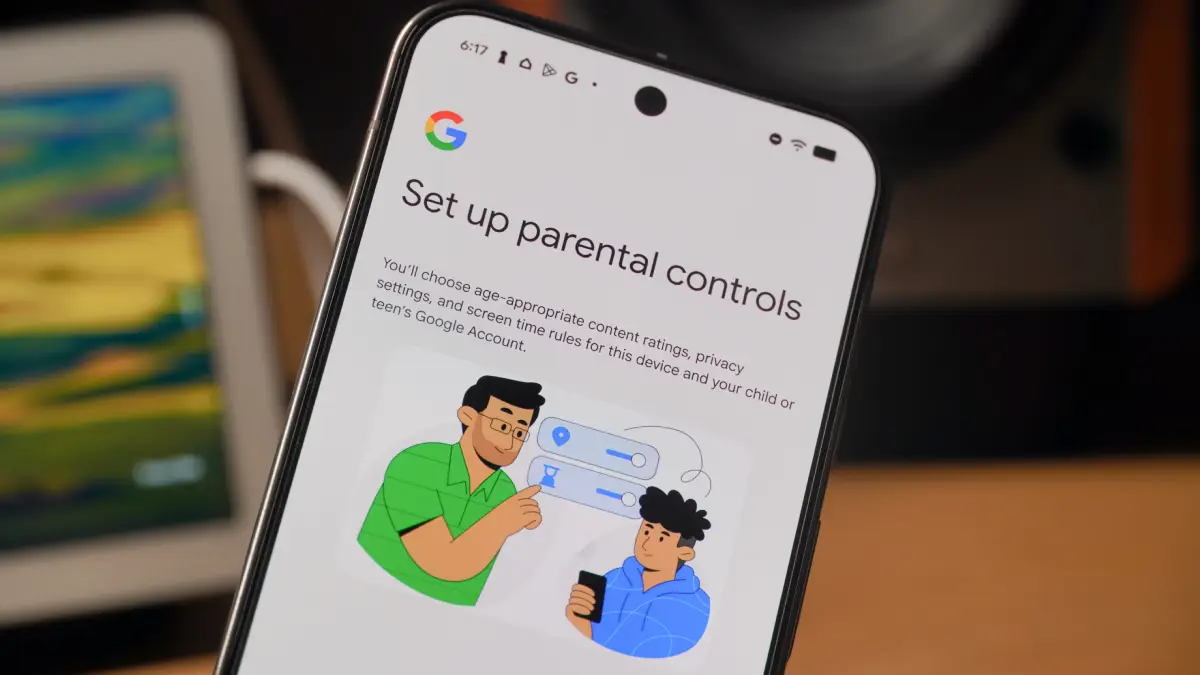
Keeping your kids safe online starts with the right tools on their Android devices. If you're searching for a straightforward way to manage screen time, block inappropriate apps, and track location, parental controls on Android through Google Family Link make it simple. This guide walks you through every step, so you can protect your children without constant hovering.
Children today spend hours on tablets and phones, exposing them to risks like excessive screen time or unwanted content. Android parental controls let you set limits tailored to their age. Google's built-in features handle app approvals, time restrictions, and more, giving you peace of mind. Parents often find that starting early prevents bigger issues down the line.
Before diving in, ensure your child's Android device runs Android 7.0 or higher. You'll need:
Download the Google Family Link app from the Google Play Store on both devices. It's free and the cornerstone of Android parental controls.
Google Family Link is the primary tool for supervising kids under 13. For teens 13 and up, it shifts to self-management with your oversight. Here's how to get started.
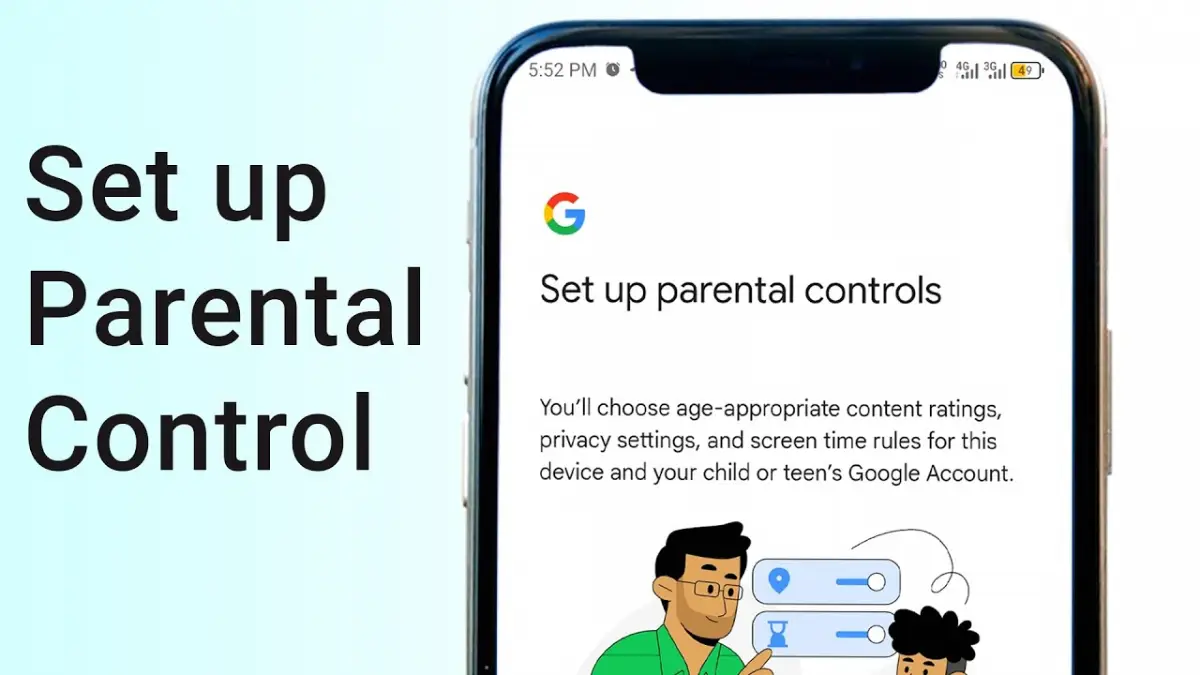
On your child's device, open the Family Link app or go to families.google.com. Select "Create account" for your child. Enter their name, birthdate (must be under 13 for full supervision), and verify with a password. You'll link this to your account during setup. This account powers all parental controls on Android.
Launch Family Link on your phone. Tap "Get started" and choose "Child or teen." Scan the QR code on the child's device or enter the setup code manually. Agree to terms, and grant permissions for location, apps, and notifications. The child's device now syncs with yours.
By default, kids can't install apps without your okay. In the Family Link app, go to "Apps" to see requests. Review descriptions, ratings, and permissions before approving. You can also block specific apps entirely from the "Apps installed" section.
Head to "Manage settings" > "Daily limits." Drag the slider to cap total usage, like 2 hours per day. Schedule downtime, such as bedtime mode from 8 PM to 7 AM, where only approved apps work. Customize per day of the week for school nights versus weekends.
Turn on "Location" in settings to see their device on a map. Set geofences for home or school. For content, enable SafeSearch in YouTube and filter websites via "Filters on Google Chrome."
These steps usually take 15-20 minutes. Test by trying to exceed limits on the child's device—it should lock automatically.
Family Link integrates with Android's native tools for extra layers of protection.
On Android 9+, find "Digital Wellbeing & parental controls" in Settings. Link it to Family Link for focus mode, which pauses distracting apps during homework. Set app timers individually, like 30 minutes for games.
In Google Play Store settings on the child's device, select "Parental controls." Choose age ratings (e.g., E for everyone) to hide mature apps, movies, or music. This works independently but syncs with Family Link.
| Feature | Google Family Link | Digital Wellbeing | Google Play Controls |
|---|---|---|---|
| App Approval | Required for installs | No, but timers apply | Age-based filtering |
| Screen Time Limits | Daily totals & downtime | Per-app & focus mode | Not available |
| Location Tracking | Real-time map & alerts | Basic history | Not available |
| Content Filters | YouTube & web SafeSearch | App focus only | Store-wide ratings |
| Best For | Full supervision (under 13) | Teen self-management | Quick store restrictions |
This table shows how to combine tools for comprehensive parental controls on Android devices. Use Family Link as your hub.
"I ignored setting up controls on my 10-year-old's tablet at first, thinking he was responsible. One day, he racked up $50 in in-app purchases before I noticed. Family Link's approvals stopped that instantly—wish I'd started sooner!" — Sarah, mom of two.
If your child has a phone and tablet, Family Link supervises both from one app. Add devices via "Add a child" or "Manage devices." For shared family tablets, create profiles under Settings > "Users & accounts."
At 13, controls loosen, but you retain approval rights until 18 in some cases. Discuss limits openly to build trust. Use reports in Family Link to review activity weekly.
Enable push alerts for low battery, new app requests, or leaving safe zones. Weekly summaries email usage stats, helping you adjust limits based on real patterns.
Problems happen—here's a practical checklist:
If issues persist, visit support.google.com/families for device-specific fixes.
Parental controls collect data like location and app use. Review Google's privacy policy and discuss with your kids why monitoring exists—to keep them safe, not spy.
Setup is just the start. Log into Family Link daily at first, then weekly. As kids mature, loosen restrictions gradually. Teach them about online safety alongside tech limits for long-term habits.
For example, after a month, review screen time reports. If games dominate, introduce alternatives like educational apps. This balanced approach strengthens family bonds.
Stick to Google tools for most needs, but apps like Qustodio offer extras like social media monitoring. Always check compatibility with Android parental controls.
Setting up parental controls on Android devices empowers you to guide your children's digital world safely. With Google Family Link, you handle approvals, limits, and tracking effortlessly. Start today, stay involved, and adapt as they grow. Your kids will thank you later for fostering healthy habits.
Word count: approximately 1450. This setup ensures safer browsing, balanced usage, and family harmony.
Published: Saturday, March 28, 2026 Viewed 2 times.
tepte.com: Your Questions and Answers Resource with a Wealth of General Knowledge
Are you seeking a one-stop destination for comprehensive knowledge and answers to your burning questions? Look no further than tepte.com! Our platform is your go-to source for a wide range of information, all conveniently presented in an easily accessible question and answer format.
At tepte.com, we pride ourselves on being your reliable knowledge hub. Whether you're curious about technology, science, history, or any other subject under the sun, our extensive General Knowledge (GK) knowledge base has you covered. We've made it our mission to provide you with in-depth insights and facts on an array of topics. Read more
