
Tepte.com


Struggling with spotty internet that drops during your favorite shows or lags in online games? You're not alone. Many homes face Wi-Fi signal challenges due to walls, distance, or interference. The good news is you can take practical steps to improve Wi-Fi signal at home without breaking the bank. This guide shares proven tricks to extend coverage and boost Wi-Fi speed for seamless streaming and gaming everywhere in your house.
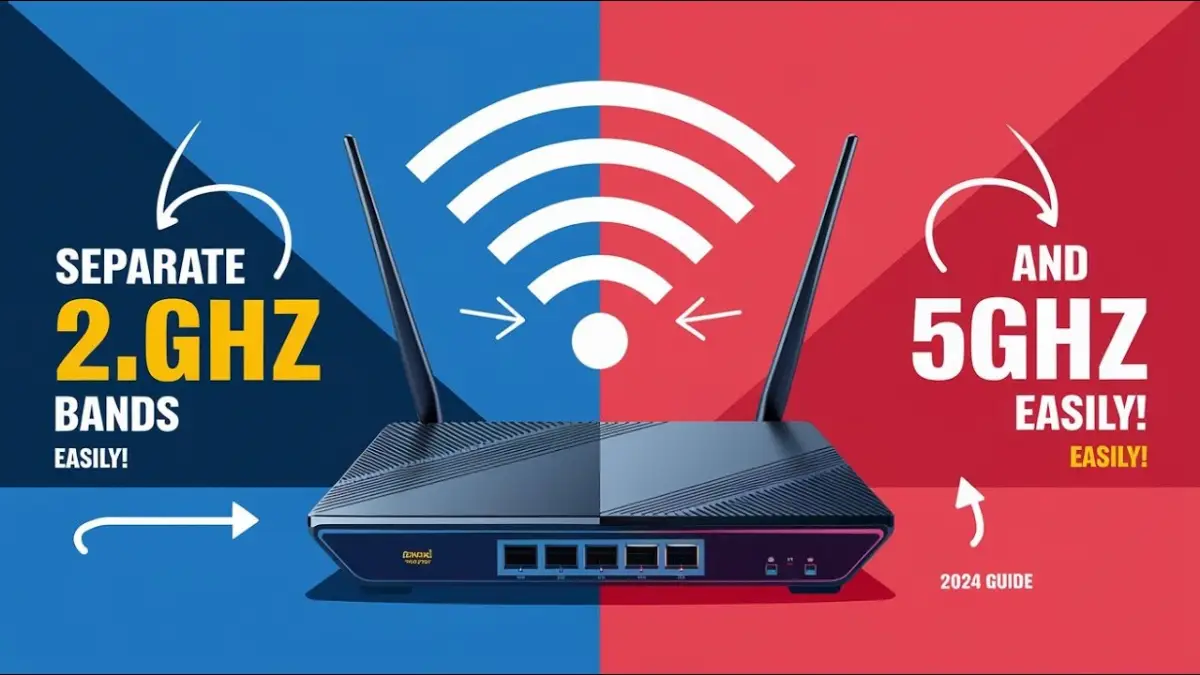
Before diving into fixes, understand the culprits. Routers broadcast signals on 2.4GHz and 5GHz bands. The 2.4GHz band travels farther but slower, while 5GHz is faster yet shorter-range. Thick walls, metal appliances, and neighboring networks clog channels, weakening your connection. Devices like microwaves and cordless phones add interference too. Identifying these helps you target solutions effectively.
The simplest way to improve Wi-Fi signal at home starts with your router's spot. Don't hide it in a closet or behind the TV. Place it centrally, elevated on a shelf, away from walls and floors. Aim for line-of-sight to high-use areas like the living room or office.
Test different locations using your phone's signal meter. Apps like Wi-Fi Analyzer show strength in real-time, helping you find the sweet spot.
Outdated firmware leaves performance on the table. Log into your router's admin page (usually 192.168.1.1) and check for updates. While there, switch to the 5GHz band for nearby devices needing speed, reserving 2.4GHz for farther ones like smart bulbs.
Choose less crowded channels. Use a scanner app to pick channel 1, 6, or 11 on 2.4GHz, or auto on 5GHz. Enable QoS (Quality of Service) to prioritize gaming or streaming traffic over background downloads.
| Band | Best Channels | Pros | Cons |
|---|---|---|---|
| 2.4GHz | 1, 6, 11 | Longer range, wall penetration | Slower speeds, more interference |
| 5GHz | 36, 40, 44 (auto often best) | Faster speeds, less crowded | Shorter range, blocked by walls |
If your router is over three years old, it's likely holding you back. Newer models support Wi-Fi 6 (802.11ax), offering better efficiency in crowded homes. Look for tri-band routers with dedicated backhaul for multiple devices.
Budget options like TP-Link Archer series deliver solid Wi-Fi coverage. For larger homes, consider Wi-Fi 6E for the 6GHz band, which stays ultra-clear.
Extenders rebroadcast your signal to dead zones. Place them midway between router and weak spots. Dual-band models maintain speed better than single-band.
Avoid cheap ones; they halve speeds. Test signal before buying—plug in and check via Ethernet if available.
"I moved my extender to the hallway, and suddenly my upstairs office went from two bars to full strength. But beware: poor placement made it worse, creating a 'double NAT' issue that slowed everything down." – Tech enthusiast sharing on Reddit.
For whole-home coverage, mesh systems shine. Units like Google Nest or Eero create a seamless network. Main router connects to satellites that talk wirelessly or wired.
Mesh beats extenders by handing off devices smoothly as you roam, perfect for smoother streaming and gaming.
| Feature | Mesh System | Wi-Fi Extender |
|---|---|---|
| Coverage | Whole home, seamless | Spot fixes only |
| Speed Loss | Minimal | Often 50% drop |
| Cost | $200-500 | $30-100 |
| Setup Ease | App-guided | Simple plug-in |
Microwaves on 2.4GHz murder signals—switch to 5GHz where possible. Baby monitors and Bluetooth speakers interfere too. Turn off unused devices and limit smart home gadgets on Wi-Fi.
Powerline adapters send internet over electrical wiring, bypassing wireless issues. Great for garages or patios.
Nothing beats Ethernet for desktops or TVs. Cat6 cables handle gigabit speeds reliably. For laptops, USB adapters add wired ports.
MoCA adapters use coax cables if walls lack Ethernet runs.
Tweak DNS to Google (8.8.8.8) or Cloudflare (1.1.1.1) for faster resolution. Enable MU-MIMO on your router for multi-device handling. If gaming, use wired or 5GHz exclusively.
Antenna upgrades on some routers boost directionality—point them outward.
Before and after each change, test with tools like iPerf or built-in router stats. Aim for 70%+ signal strength (-50dBm or better) everywhere. Track download/upload speeds too.
Combining these tricks often yields 2-3x better Wi-Fi speed and coverage. Start with free ones like placement and channels, then invest as needed. Your home network can handle 4K streams and lag-free games with these steps.
Got a unique setup? Experiment safely and monitor changes. Better Wi-Fi throughout your house is within reach.
Published: Monday, January 19, 2026 Viewed 5 times.
tepte.com: Your Questions and Answers Resource with a Wealth of General Knowledge
Are you seeking a one-stop destination for comprehensive knowledge and answers to your burning questions? Look no further than tepte.com! Our platform is your go-to source for a wide range of information, all conveniently presented in an easily accessible question and answer format.
At tepte.com, we pride ourselves on being your reliable knowledge hub. Whether you're curious about technology, science, history, or any other subject under the sun, our extensive General Knowledge (GK) knowledge base has you covered. We've made it our mission to provide you with in-depth insights and facts on an array of topics. Read more
